
How to Use AI Insights in MentionTracking — Ask Your Mentions Anything
If you've ever spent an hour scrolling through your mentions feed trying to figure out "what are people actually complaining about this week?" — AI Insights is built exactly for that moment. It is a chat layer on top of all the mentions we have collected for your project. You ask a question in plain language, and the AI answers using only your real mentions as the source of truth, with clickable citations back to the original posts.
This guide walks through everything the section can do today, what's behind the scenes, and how to get the most out of it. AI Insights is currently in Preview, so we are actively expanding it — but the core workflow described below is fully live in your dashboard.
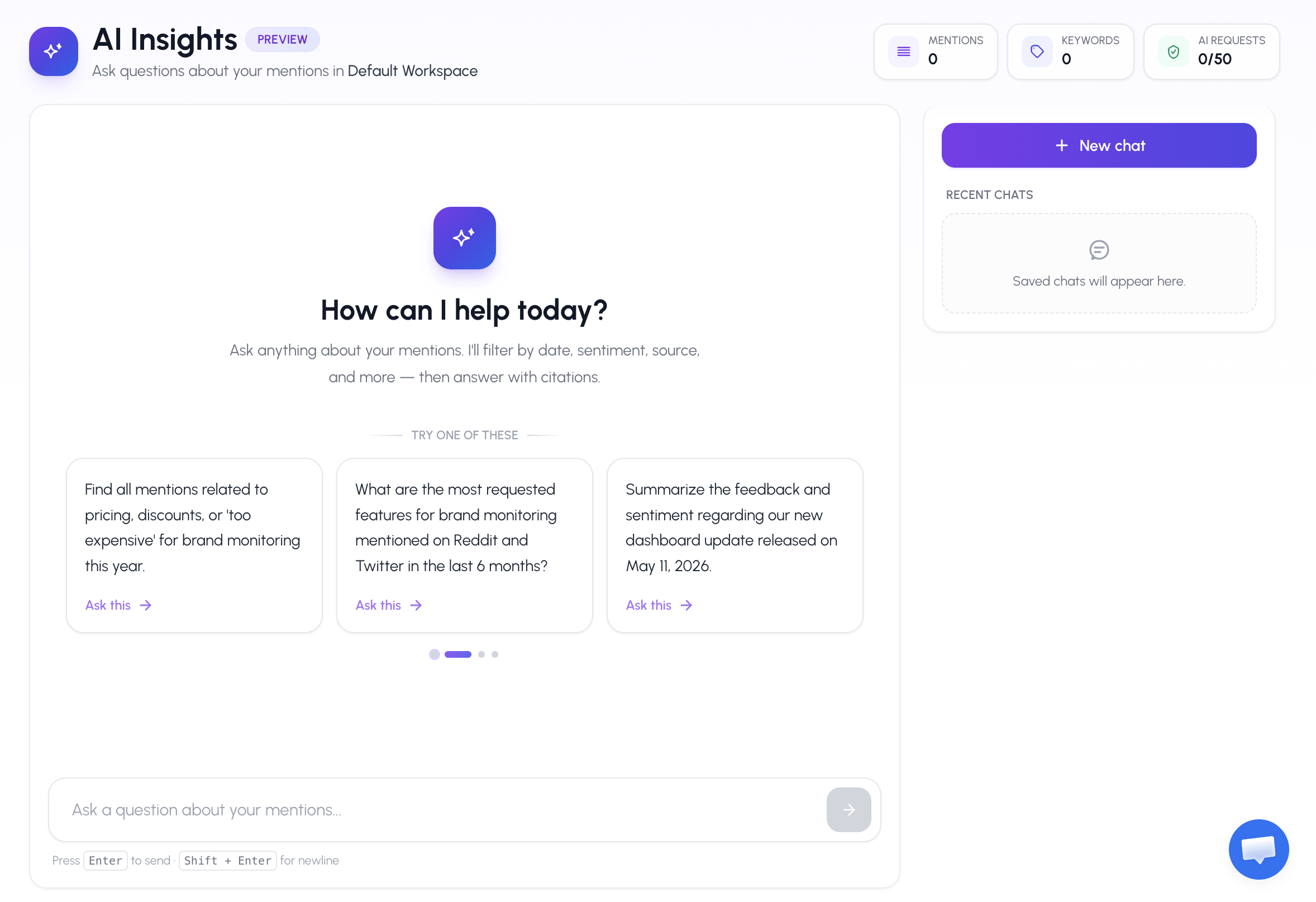
What is AI Insights?
AI Insights is a built-in AI analyst for your brand and product mentions. Instead of filtering mentions by source and date and then reading them one by one, you simply ask:
- "What are the top 3 most common bugs reported by our users in the last quarter?"
- "Summarize the main reasons for negative sentiment about my brand in the past week."
- "Find all mentions related to pricing or 'too expensive' for my product this year."
- "Compare how people talk about my product vs my competitor on Reddit."
The AI pulls the matching mentions from your project, reads them, and gives you a structured answer with concrete examples and citations like [#1842] that point straight to the original post on Reddit, X, LinkedIn, YouTube, and so on.
The key difference vs ChatGPT: AI Insights only uses your mentions as evidence. It is not allowed to invent facts, numbers, sources, or dates. If there is not enough data to answer, it will tell you so honestly rather than guess.
Who can use it (plans and limits)
AI Insights is available on Pro and Premium plans. Here is exactly what each plan gets per project:
Starter plan
AI Insights is not available on Starter. You can collect and review mentions on the dashboard, but the AI Insights workspace will show a soft "Upgrade" lock screen.
Pro plan
- 10 AI questions per month per user
- 10 AI-generated PDF reports per month
- All sources, all filters, all conversation history
Premium plan
- 50 AI questions per month per user
- 50 AI-generated PDF reports per month
- Includes LinkedIn as a source and unlocks project comparisons in chat
One more requirement: AI Insights needs at least 10 collected mentions in the current project before it unlocks. This is to make sure the AI actually has something to read — answering "what do people think of my brand" with 2 mentions is meaningless. If you're not there yet, you will see a progress bar showing how close you are.
Your monthly quota resets on the same day every month and you can always see the remaining count in the header of the page — the green "AI requests" badge shows something like 3/10 or 27/50.

How to open AI Insights
Step 1. Log in to your dashboard and select the project you want to analyse using the project switcher at the top of the sidebar. AI Insights always works in the context of one project at a time.
Step 2. In the left sidebar click AI Insights. You will land on the empty-state greeting with a row of suggested prompts.
Step 3. Either click one of the suggested prompts, or type your own question in the input field at the bottom and press Enter. The first message you send automatically starts a new conversation.
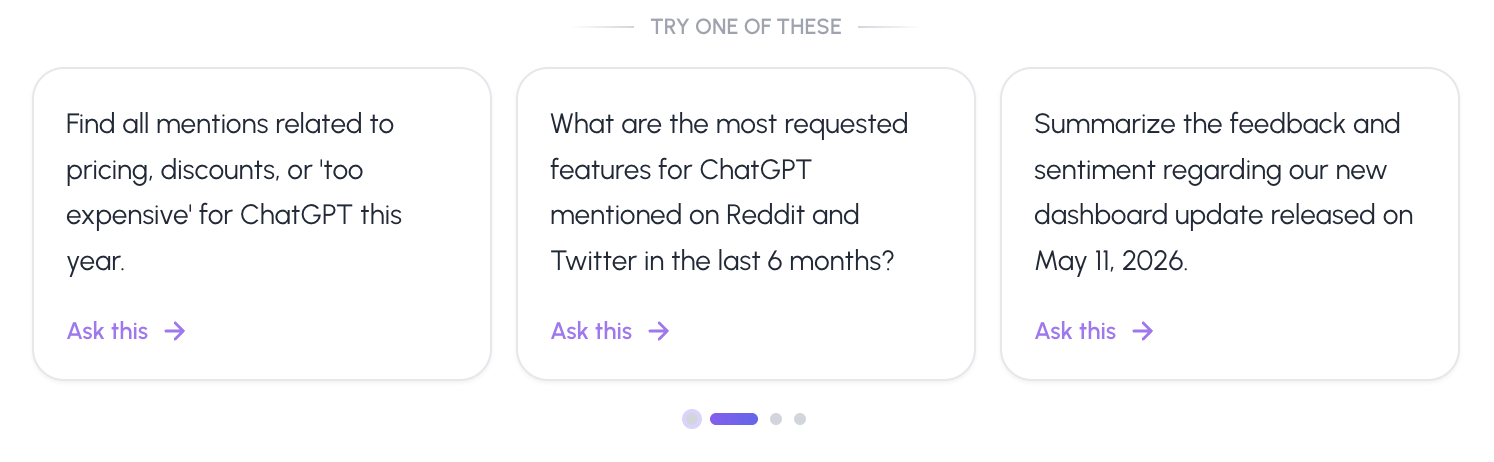
The suggested prompts (the fastest way to start)
When the chat is empty, we show a row of pre-written questions tailored to your active keywords. Each one is a real, complete prompt — not just a category. They are grouped by what most users actually want to know:
- Complaints — negative mentions in the last 14 days
- Discovery — people asking for recommendations like your product
- Bugs — top 3 most common bugs reported in the last quarter
- Pricing — mentions about price, discounts, "too expensive"
- Features — most requested features on Reddit and X
- Feedback — sentiment around your last release
- Technical — downtime and outage chatter in the last 48h
- Influencers — users who posted positive reviews this month
- Sentiment / Themes / Positive — high-level summaries
If you've never used the section before, I'd start here. Click Complaints and read the answer — it is usually the most eye-opening for a brand owner.
Asking your own questions
You can ask in any language — the AI replies in the same language as your question. There is no special syntax. Just write what you actually want to know, the same way you would ask a colleague. Some practical tips:
1. Be specific about time
The AI parses dates from your question, so phrases like "in the last 14 days", "this month", "since March 1", or "in Q1" work great. If you don't mention a date, the AI will look at all mentions in the project.
2. Mention sources by name to narrow down
If you say "on Reddit" or "on X and LinkedIn", AI Insights will automatically filter the retrieval to those sources only. The detected filters are shown right above the answer in a small pill row, so you can verify the AI understood you correctly.
3. Mention sentiment or intent
Words like "negative", "complaints", "praise", "questions", "feature requests" are picked up automatically and pre-filter the data the AI looks at.
4. Compare things
You can ask "compare how people talk about Product A vs Product B", and the system will pull two parallel slices of mentions and compare them target-by-target before giving the final verdict. On Premium, this also works for comparing two projects in your account.
Understanding the answer
Every assistant reply has three parts you should pay attention to:
The answer itself
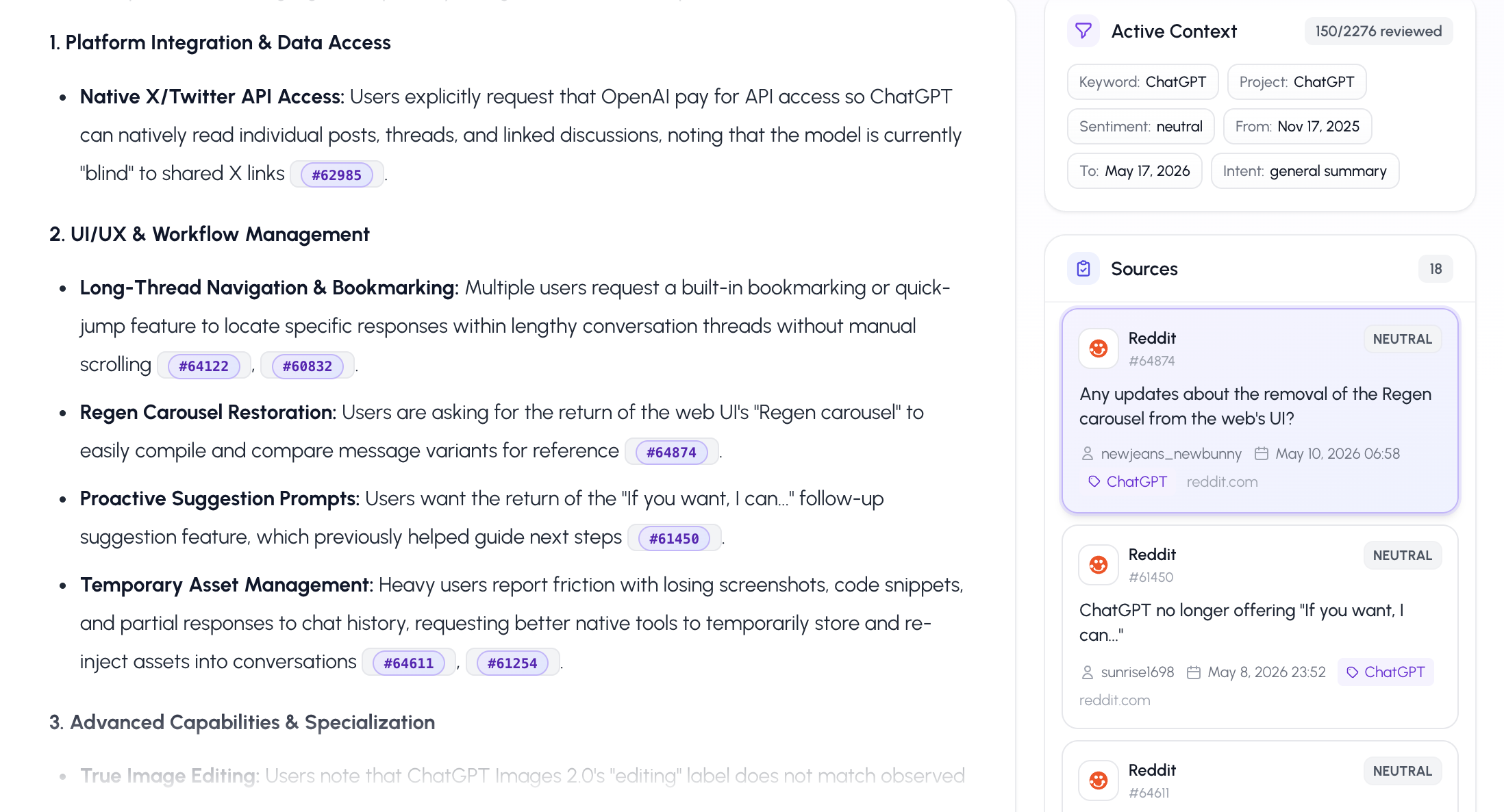
Written in clean sections, with bullet points and a short final takeaway at the end. References to specific mentions appear as numeric tags like [#1842]. Clicking them scrolls you to the source card in the right rail or opens the original post in a new tab.
The detected filters bar
Just above the answer you'll see a row of small pills showing how the AI interpreted your question — date range, source, sentiment, keyword, etc. If the filters look wrong (for example, you meant LinkedIn but it picked Reddit), just rephrase your follow-up question to correct it.
The "Sources" right rail
On the right side of the page you'll see up to 18 mention cards used as evidence: source icon, author, sentiment colour dot, short preview, and a link. Cited mentions (the ones the AI actually referenced inside the text) appear first, then the rest of the retrieval pool.
Why this matters: AI Insights is built around the principle "show your work". Every claim in the answer is traceable back to a real post you can open and verify. There are no hallucinated quotes.
Follow-up questions and conversation memory
Each chat keeps the last 10 messages in context, so you can ask follow-ups naturally:
- "What are the top complaints this month?"
- "And which of these are about pricing specifically?"
- "Give me 3 example quotes for the second one."
When your follow-up is clearly about the same data as the previous answer ("give me more examples", "summarize the second point", "show those mentions in a table"), the AI re-uses the same set of mentions it analysed last time — so you don't burn a new retrieval cycle and answers stay consistent.
Past conversations appear in the left rail of the chat, sorted by most recent activity (up to 20 are shown). Click any conversation to reopen it; click the trash icon to delete one.
Generating a PDF report from any answer
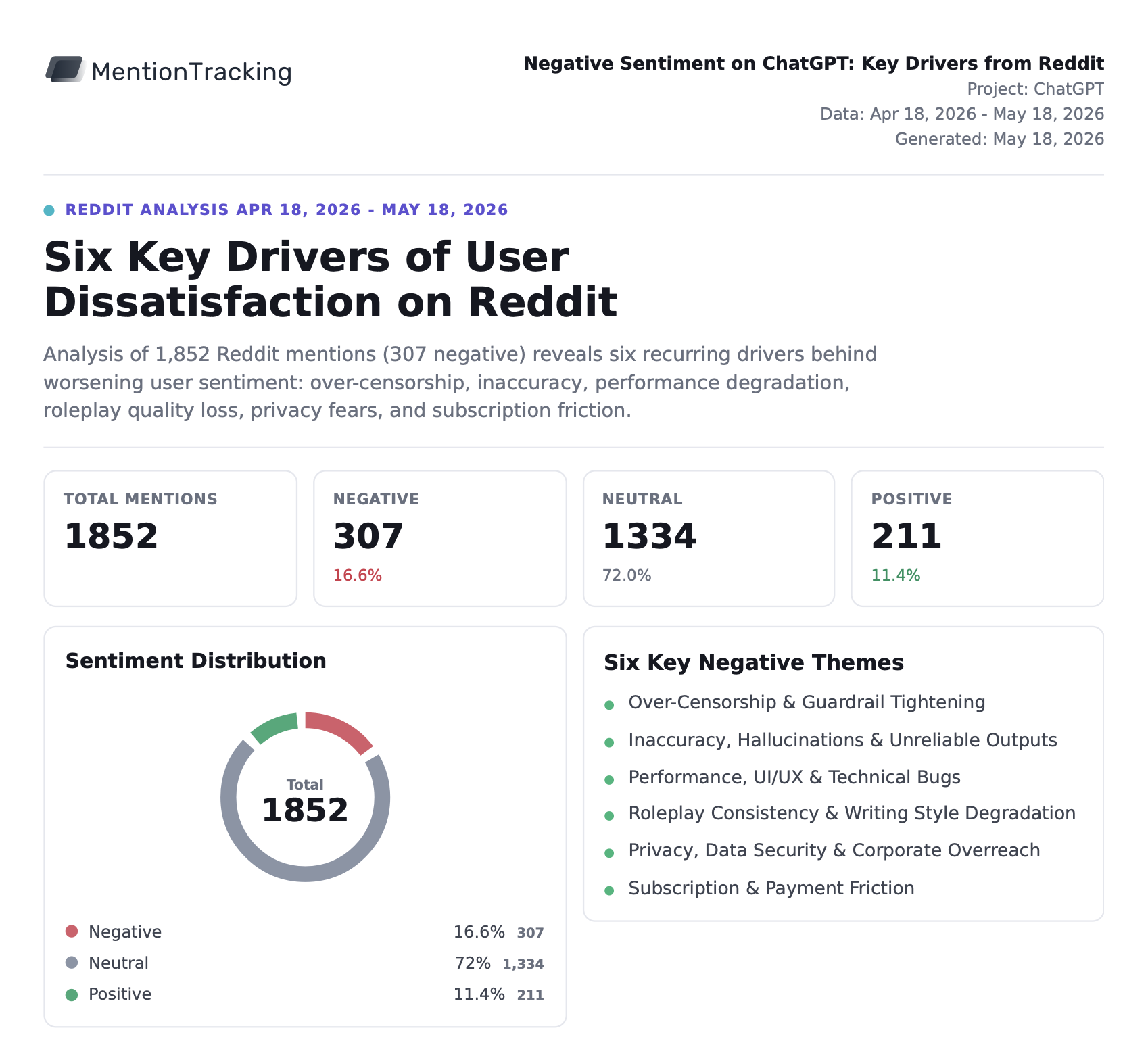
This is one of the most powerful features and it's often missed. Below every assistant answer there is a "Generate report" button. Click it and within ~30–60 seconds, AI Insights builds a fully-designed, multi-page PDF report based on that exact answer and the mentions behind it.
A report typically contains:
- A cover with title, headline, and executive summary
- Metric cards — totals, source distribution, sentiment split
- Charts — donut, bar, stacked bar, dual-line, heatmap, sparklines
- Theme breakdown table — major themes, AI interpretation, volume, sentiment
- Recommendation block — concrete next steps, not vague advice
- Opportunity score — weighted by source quality
- Citations appendix — quoted mentions with context and tags
The report renders in your browser and you can download it as a real PDF. It is designed to be sendable to a manager, a client, or an investor without any cleanup.
Quota tip: reports use a separate monthly quota from chat questions. So even if you've used all 10 AI questions on Pro, you can still spend your 10 report credits — or vice versa.
What's happening behind the scenes
This part is optional reading, but useful if you want to know why the answers are reliable.
- Query parsing. Your message is parsed for filters: keyword, date range, sentiment, source, intent, and any comparison targets.
- Retrieval. Mentions matching those filters are fetched from your project. For semantic questions we use vector search (Qdrant) to find the most relevant mentions even when the wording is different. For analytical questions ("how many", "compare", "trend") we use exact SQL filters so the counts are always accurate.
- Analysis. The retrieved mentions plus pre-computed aggregate stats (totals, source distribution, sentiment distribution) are sent to a large language model with strict instructions: only use the provided mentions, never invent facts, cite numeric mention IDs only.
- Storage. The answer, its filters, its sources, and a snapshot of the retrieved mentions are stored with the conversation so that follow-up questions and PDF reports can use the same evidence base.
Hard rule we enforce: the model is not allowed to cite a mention ID that wasn't in the retrieved set. If you ever see [#123] in an answer, that mention is guaranteed to exist in your project.
Giving feedback on answers
Under every assistant reply there are two small buttons — a thumbs up and a thumbs down. Use them. Feedback is logged per message and we review the low-rated ones to improve retrieval and the system prompts. If something is off, that single click is the most useful thing you can do to make the section better for your specific use case.

Common questions
Why am I being told there's not enough data?
AI Insights requires at least 10 collected mentions in the current project. If you just created the project, give the trackers a few hours to gather mentions for your keywords, then come back.
Why did the answer skip some mentions?
For performance and quality, we cap how many mentions are sent to the model per question (up to ~150 for analytical questions and ~60 for qualitative ones). The model is told the total count of matching mentions and the number it actually reviewed, so you'll always see something like "reviewed 60 out of 432 matching mentions". If you need broader coverage, narrow the question with a date or source filter — the AI will then look at a more focused slice.
Can I ask questions across multiple projects?
The chat itself is scoped to the project you have open. Premium users can ask comparison questions like "compare Project A vs Project B" and the system will pull data from both. To switch context entirely, use the project switcher in the sidebar.
Does AI Insights see private or deleted mentions?
No. It only reads non-deleted mentions belonging to your account, in the current project, that still have an active keyword.
What language can I use?
Any language. The model replies in whatever language you wrote in. You can mix languages between conversations without any setup.
Tips to get the best answers
1. Start broad, then drill down. Ask a wide question first ("what are the top themes this month?"), then use follow-ups to zoom into the interesting parts. This way you don't waste a full request on a question that turns out to be too narrow.
2. Always include a time window. "This month", "in the last 7 days", "since the launch on May 1" — time anchors make answers far more useful and let the AI surface trends instead of stale data.
3. Ask for concrete examples. Append "include 3 example quotes" or "show 5 cited mentions" to any question. The model will then anchor each claim with a specific [#xxxx] reference you can open.
4. Use the report button on important answers. If an answer feels worth sharing internally, click Generate report right away — it turns a chat message into a clean PDF you can hand off without editing.
Final thoughts
AI Insights is the difference between having mention data and actually using it. The traditional flow — filter, scroll, read, take notes, summarize — becomes one sentence and one click. And because every claim is grounded in your real mentions with traceable citations, you can trust the output enough to send it to a stakeholder without reviewing every line.
If you're on Starter, this is the single best reason to try the Pro plan: 10 AI questions a month is enough to run a weekly health-check on your brand, plus 10 polished PDF reports to share the highlights. If you're on Pro and you find yourself running out of questions before the end of the month, Premium is the upgrade you're looking for.
Open the section, click the Complaints suggested prompt, and see what your customers have been quietly telling you. You'll probably learn something useful in the next 30 seconds.